Help centre

How to build and ship an arcade game

Arcadedo is where you build and brand the game. Gametize is where your players reach it. Everything below follows that path in order.

How It Works

Eight steps from empty template to a game your players can reach. Drafts save as you go, so you can stop anywhere and pick it up from My Games.

  1. Step 1

    Pick a template

    Turbo Quiz Racer, Mini Maze, or Jumpy Dash. Your choice decides the gameplay and which setup steps you get.

    Tip: Play the sample on any template page before you commit.

    Browse templates
  2. Step 2

    Choose how to set it up

    Every step can be filled in by chatting with Chillo or by hand under Manual steps. The toggle sits under the step row, and switching keeps your work.

    Tip: New to this? Start with Chillo and take over manually whenever you want.

  3. Step 3

    Write the player-facing text

    Title, description, how to play, and the win and lose messages, plus an optional featured image for your dashboard card.

    Tip: Rewrite copy with AI polishes all of it in your brand voice at once.

  4. Step 4

    Add your learning content

    Quiz questions for Turbo Quiz Racer, one fact per collectible for Mini Maze. Write them yourself, or generate them from a topic or an uploaded PDF. Jumpy Dash is score-based and has no written content.

    Tip: Applying generated content replaces the current list, so save a draft first if you want to keep it.

  5. Step 5

    Brand it

    Upload a logo to pull a palette from it, then adjust the four brand colours, font, and button shape. The preview beside you updates as you type.

    Tip: Reset to default is always there if an experiment goes wrong.

  6. Step 6

    Tune the rules

    Difficulty, scoring, attempts, and sound. Each template has its own dials - lives and timers for the racer, enemies for the maze, obstacles and coins for the runner.

    Tip: Set the pass score against your points per correct answer, not in isolation.

  7. Step 7

    Check and publish

    The Go step lists anything still missing. Clear it, publish, and your game gets a shareable embed URL.

    Tip: Published games stay editable - players on the same URL get your updates.

  8. Step 8

    Embed in Gametize

    Paste the embed URL into your campaign under "URL to Embed", preview it, then publish the campaign so players can reach it.

    Embed steps

Setting Up With Chillo

Every template can be set up two ways. Manual steps gives you the forms; Chillo (chat) lets you describe what you want and have it filled in for you. The toggle sits under the step row, and switching does not lose any work.

  • Describe your brand and audience in plain language — no hex codes or field names needed.
  • Upload a logo in the chat and Chillo pulls your palette from it.
  • Attach a PDF and it writes questions or facts straight from the document.
  • It applies one change at a time, tells you what it changed, and waits for you to review before moving to the next step.
  • It only edits this arcade game. Anything off-topic is declined.
  • Every creator gets a daily message allowance, shown under the chat box.
Good to know: Chillo shows a green tag for each thing it changed, so you can always see what was applied before you accept it and move on.

Embed in Gametize

Publishing in Arcadedo is step one. Embedding in Gametize is how players actually reach your arcade game — that is the real finish line.

Steps

  1. 1Publish the arcade game in Arcadedo (status must be Published).
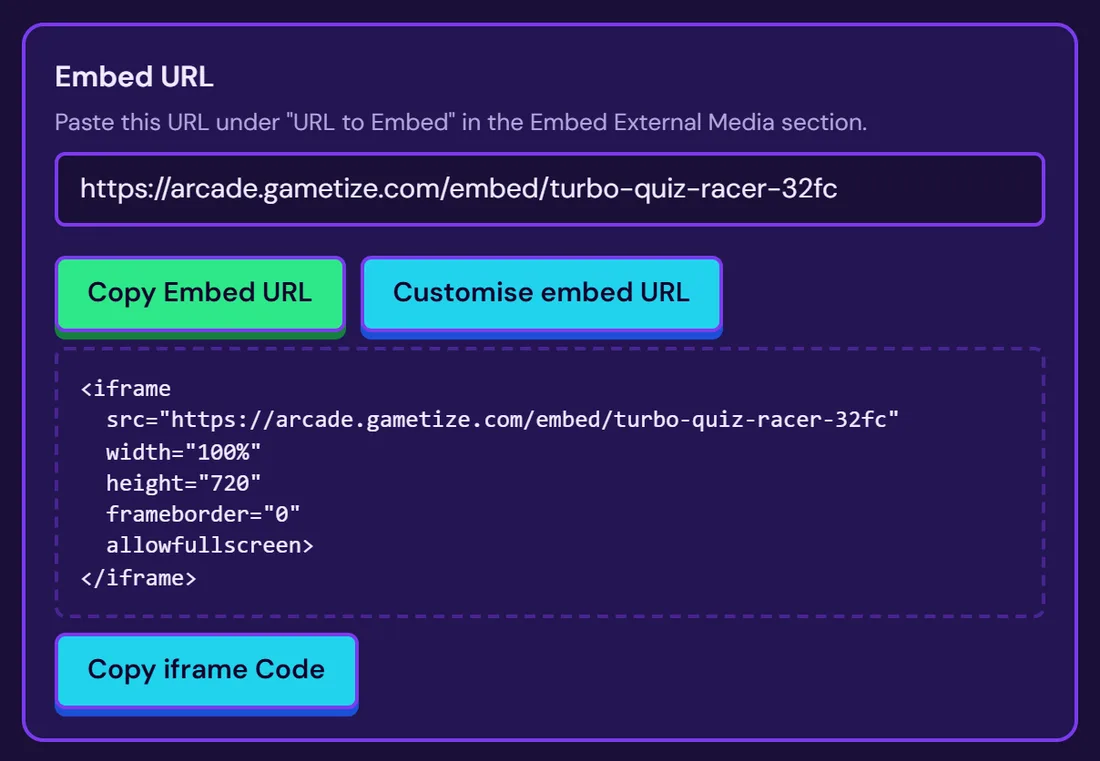
  2. 2Open the Go step, or the Embed screen, and copy the embed URL.
  3. 3In Gametize, open your project or campaign.
  4. 4Scroll to the section "Embed External Media".
  5. 5Under "URL to Embed", paste the website URL.
  6. 6Preview inside Gametize, then save and publish the campaign.

What to expect

  • Loads inside Gametize without redirecting players away
  • Responsive on desktop and mobile
  • Keeps your branding, settings, and scoring intact
  • Shows loading, completion, and pass/fail states
  • Supports fullscreen where the host allows it

Example iframe

<iframe
  src="https://arcade.gametize.com/embed/your-game-slug"
  width="100%"
  height="720"
  frameborder="0"
  allowfullscreen>
</iframe>

Common Questions

Do I need to write code?
No. Pick a template, fill in the steps, and publish. Everything is forms and sliders, and the embed snippet is generated for you.
Which template should I pick?
Turbo Quiz Racer for anything knowledge-based — it is the only one with a quiz. Mini Maze when you want short facts revealed through exploration. Jumpy Dash for a quick, score-driven engagement challenge with no written content.
What is Chillo?
The setup assistant in the editor. Switch to Chillo (chat) at the top of any step, describe your brand, and it fills things in while you watch the preview. Manual steps stays available the whole time, and you can swap back and forth.
Can I edit a game after publishing?
Yes. Open it from My Games, make your changes, and save. Players on the same embed URL get the updated version.
Do my changes save automatically?
Drafts save as you work, and the header shows Saved or Unsaved changes. Use Save draft if you want to be certain before closing the tab.
What is the pass score?
The minimum score a player needs to be marked as passed. Set it in the rules step, based on your points per correct answer and how many questions you wrote.
Is there a limit on AI generations?
Yes. Text and image generation each have a daily allowance per creator, and the remaining count is shown next to the AI tools. It resets each day.
Where do players actually play?
Inside Gametize. Arcadedo builds and hosts the game; Gametize shows it to players through the embed URL you copy after publishing.
How do I get an account for a colleague?
Arcadedo is invited users only, so email enquiry@gametize.com with who needs access and we will set them up.
Still stuck? Contact the Gametize team and tell us which step you were on.